Profile Facebook Twitter My Space Friendster Friendfeed You Tube
Kompas Tempo Detiknews
Google Yahoo MSN
Blue Sky Simple News Simple News R.1 Simple News R.2 Simple News R.3 Simple News R.4
  • Can a browser really make the Web better? Yes ! Download the new Firefox 3.6
  • What Is The Best Browser? All answers

Posts Recentes

Saturday, October 11, 2008 | 9:30 AM | 0 Comments

earn money from Gomez Peer

Gomez Peer provides service to third party to measure the real - world performance of websites. It needs thousands of computers combine together to take it effective, and provide data to the third party. So, they will pay people


For Gomez Peer to pay you, you must sign up with your own user name and password.

Once they accept you. You and update the payment information, so they can pay you.

You either choose paypal, Alipay, or moneybookers. If you don't have account with all these services, sign up with them, it is free of charge.

On the final step, you have download their software called "Peer", it is a Java Application, install it on your spare computer if you have more than one. Running it on the background, it won't affect your internet connection. You money will accumulated as long as you log online.

Friday, October 3, 2008 | 9:07 AM | 0 Comments

Download Spybot Search and Destroy

If you go online, you risk your computer to lots of unwanted cyber-threats. These come in the form of spyware, adware, Trojans, keyloggers and additional security issues. Not only do these cause your system to perform slower, they can also cause damage to it. Some of them can even totally disable your computer. The best way to defend against them is to use Spybot Search & Destroy on a regular basis. In order to do this, you need to download and install it first. The following gives you the steps required to accomplish this.

Locate Spybot Search & Destroy online. Open the website link found under Resources below. This is the site of the creator of Spybot Search & Destroy, Safer Networking. You are able to learn a lot of information regarding the company, a number of additional products they have designed and a description of Spybot Search & Destroy.

Learn about Spybot Search & Destroy. On the right portion of the homepage you will find a list of the available “Products” designed. Click on the one titled “Spybot Search & Destroy”. A page will open with an overview of the application you can read. Here you are able to also see exactly which threats are detected by clicking on the “Support & Threats” link. You can read over a detailed tutorial or evaluate a list of applications that are compatible with it under the “compatibility overview” link. The numerous Spybot Search & Destroy features are detailed as well under the “features” link.

Initiate your download of Spybot Search & Destroy. Under the overview section is the download area. Click on either the “Spybot Search & Destroy” link or the icon to the right with the word “Download” under it. A page opens with a large selection of sites where you can download the program. Select one to be redirected to their download page.

Complete the download. Select the “Download Now” link. You will have to disable any pop-up blocker to be capable of downloading it. A security warning box will appear. Pick “Run” to start the download. Following the complete download, an installation wizard appears. Choose “Next” and then accept the license agreement”. Click “Next” yet again and a few more times after that to allow the wizard to complete the Spybot Search & Destroy installation.

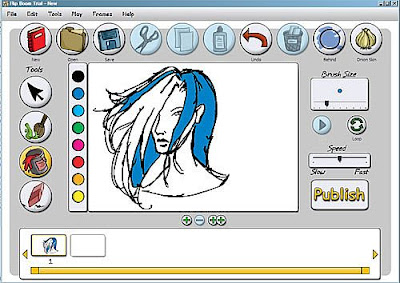
Draw and Animate in Flip Boom

Drawing and animating in Flip Boom is simple; the program is designed so that you can start working the moment you install and run it.


When you first open Flip Boom, you'll see a blank document and a variety of tools. You'll start off with two frames; make sure the first frame in the timeline at the bottom of the program screen is selected.

To draw, click on the paintbrush icon in the left-hand menu.

Select a color from the palette to the left of the drawing area. Unfortunately you can't customize colors in Flip Boom, but you at least have a basic range of shades.

Use the Brush Size slider at the top right to select a brush size. If you have a graphics tablet capable of pressure sensitivity and compatible drivers, you can select a larger brush size and just use the pen pressure to change the line weight.

Begin drawing on the white working area, as you might in any other program.

When you draw enclosed shapes, you can use the fill tool (the paint bucket in the left menu) to fill them in.

If you make a mistake, use the eraser to erase it.

When you're done with the first frame, click on the next; a new blank canvas will appear.

Use onion-skinning to view outlines of the previous frame, and draw the next based on that to create your sequential animation. When you draw something on the new frame, a third frame will appear in your timeline, ready for you to move on and continue drawing when you're done.

Alternately, instead of drawing the next blank frame you can instead draw the last frame in your animation before inserting a new blank frame between the first and last and using onion-skinning to draw in-betweens based on the first and last.

Download Smileys From Smiley Central to MSN

Add character to your email messages, instant messages, blogs or MySpace account with a smiley from Smiley Central. The toolbar is free and there are over 1,000 smileys available for download. Save up to 10 custom smileys and create new smileys too. You can also get new screen savers, cursors and ecards with Smiley Central.

Navigate to the Smiley Central website, click on "Get Free Smiley's Click Here" button and follow the download instructions to install the Smiley toolbar.

Log in to your MSN account on the MSN website.

Write an email with MSN Hotmail or an instant message with MSN Messenger.

Click the "Smiley Central" button on your toolbar in the upper-right corner. Select a category or type in search criteria.

Create a custom smiley by clicking on "Custom Smileys" to add text to a bubble or smiley sign and click "Apply." Choose "Custom Smileys" and then "Saved Smileys" to access your saved smileys.

Select the smiley you want and it appears in your email. If you're sending an instant message, it will appear as code in the window, but once the message is sent it will convert to the smiley.

 
Copyright © 2010 - All right reserved | Template design by Herdiansyah Hamzah | Published by Jurnalborneo.com
Proudly powered by Blogger.com | Best view on mozilla, internet explore, google crome and opera.